Introduction
At the month end, you might have Purchase Invoices that are unposted for a variety of reasons. For example, some invoices might be awaiting approval, while others could be in query due to price discrepancies. You could also have Purchase Orders with lines of “G/L Account” that have been received but no invoice has been received from the Vendor. If this is the case you may want to accrue for these so the expense is recorded in the correct period.
In this post, we’ll walk through how you can use the Purchase Lines page to create the foundation for a journal to post these accruals.
I’ll also show how the “Recurring General Journal” can be used as a reversing journal for the posting.
The first report we’ll tackle is the Unposted Purchase Invoice Lines 😊
Please note this post focuses on line items of type “G/L Account”. If you use “Items” you can switch on “Expected Costing” in “Inventory Setup” to have the system automatically post the accrual when you receive the Inventory.
Report for Unposted Purchase Invoice G/L Account Lines
The basis of the report will be the “Purchase Lines” page.
The Purchase Lines page lists the line items on any unposted Purchase document. Therefore its on this page you can see the unposted lines of Purchase Quotes, Purchase Orders, Purchase Invoices and Purchase Credit Memos.
I’ll therefore open the Purchase Lines page and then click to enter the “Analysis Mode“.
I tend to use “Analysis Mode” much more since the feature “Add fields in Analysis Mode” was added. I blogged about this here)
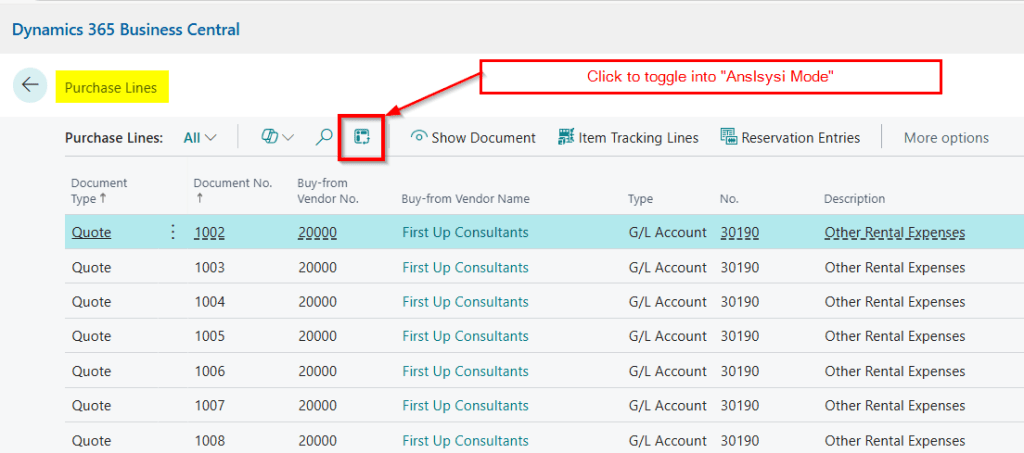
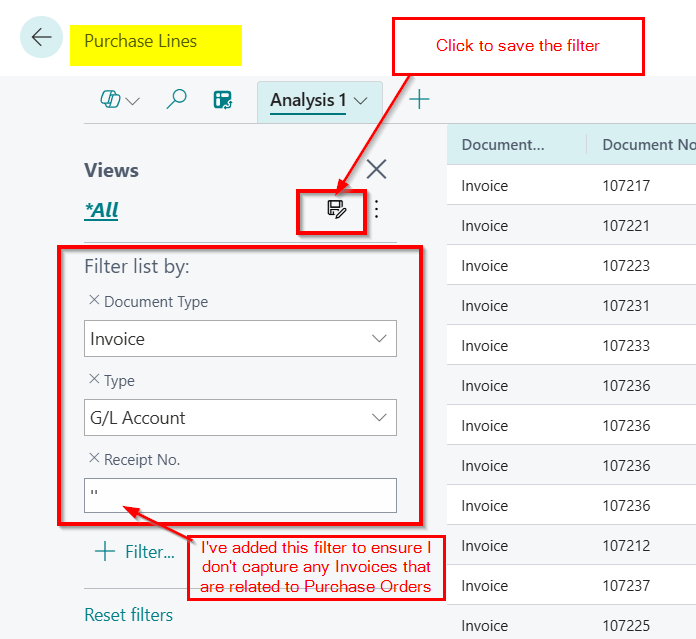
Once in analysis mode we can add our filters. To ensure I capture the Purchase Invoices I want to accrue for, I’ll use the following filters:
Document Type = Invoice
Type = G/L Account
Receipt No = Blank (this is so I don’t pickup Invoices that are matched with Purchase Orders. (I’m going to deal with Purchase Orders in another report)
You may also want to add a date filter to exclude current period Purchase Invoices. For example if we are accruing for August 2025 Purchase Invoices and we have added September 2025 invoices we’d need to add a filter to exclude September 2025 Purchase Invoices
I’ll add the filters and click the “Save” button to save this as a filtered view
With the data ready, the next step is to make sure the right columns are visible for building the journal. I’ll select Document No., Type, No., Description, and Line Amount.
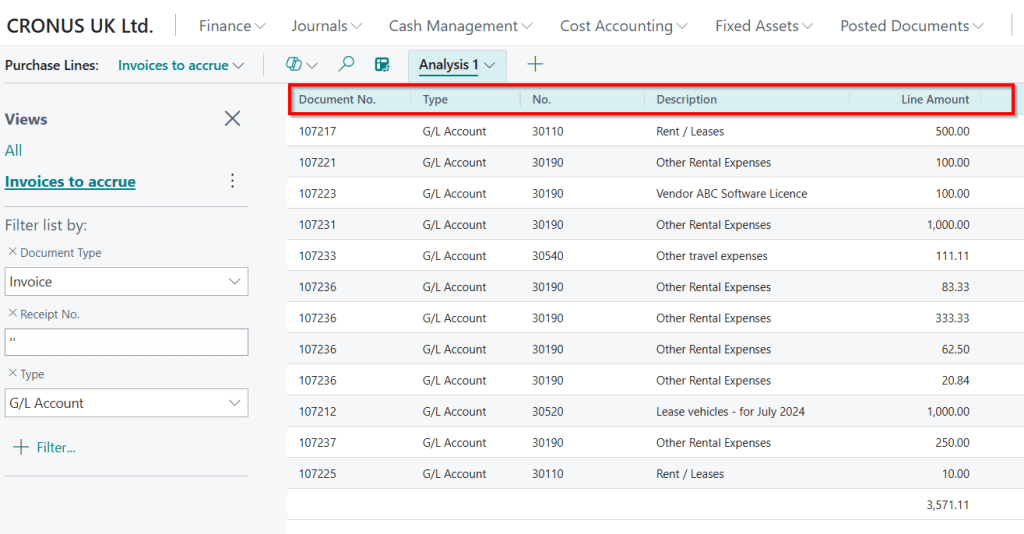
If i had lots of Purchase Invoice lines to accrue, I could use the “Pivot Function” and summarise by “No.” to get a sum per GL code. (I love analysis mode 😊)
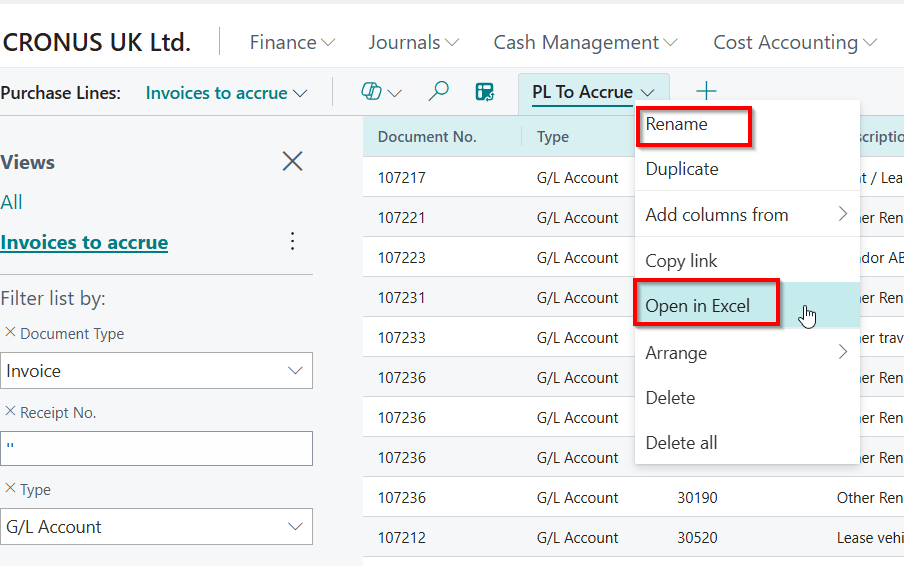
Now I have the information I need, I can “Rename” the Analysis view, and can click “Open in Excel” to take the data out into Excel.
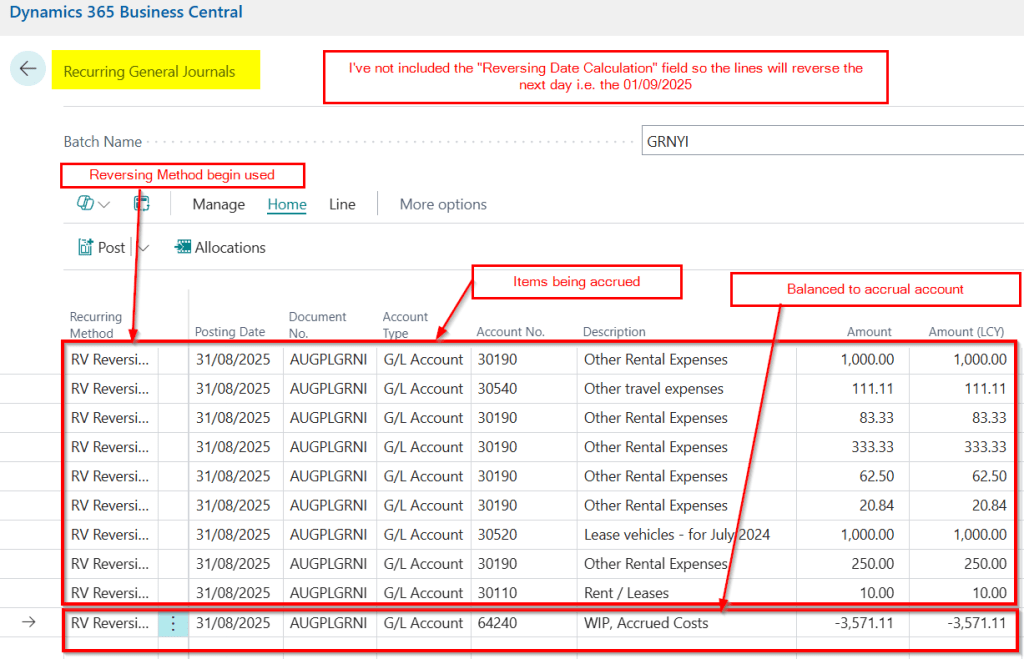
Now its just a case of going to “Recurring General Journal” and populating the data. (I could use a preconfigured Configuration Package or copy and paste to bring some automation to this process)
I’ve populated the journal below
Report for Received Not Invoiced Purchase Order G/L Account Lines
Now we have the method for the Unposted Purchase Invoices we can do the same for Purchase Orders that have been received and not invoiced. We just need to change the filter.
To capture the Purchase Orders we need, we’ll use the following filters:
Document Type = Order
Type = G/L Account
A. Rcd. Not Inv Ex. VAT <> 0
I’ll use the “A. Rcd Not Inv Ex. VAT field as this field shows the net value of goods or services received but not yet invoiced
These are shown below:
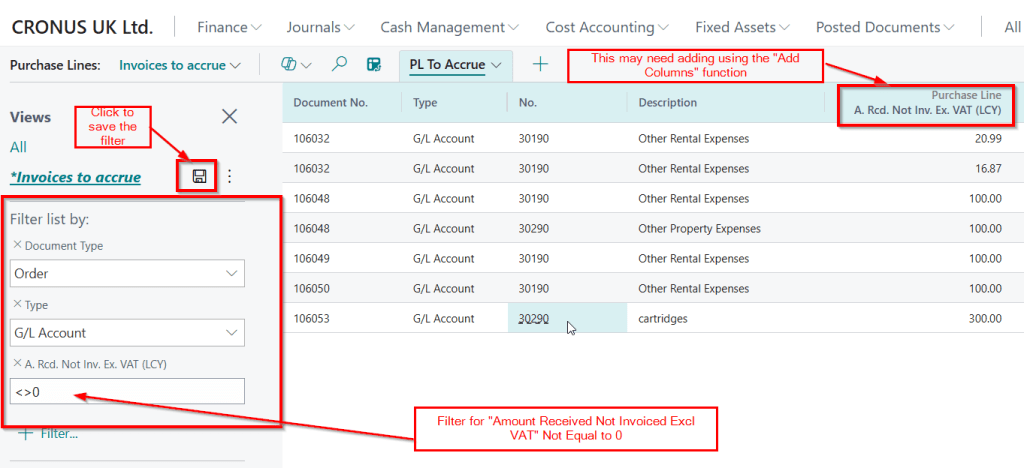
This can now be exported to Excel and input into a “Recurring General Journal” as we did previously.
Conclusion
This post shows how you can quickly and easily create views based off the Purchase Lines page to help with month end accruals.
It also showcases how you can use “Analysis Mode” for most reporting. Since the introduction of “Add columns in Analysis Mode” I’m finding I’m using this feature more and more.
Thanks for reading!
 thedynamicsexplorer.com