Introduction
Due to the design of the General Ledger Account structure in Dynamics GP, its easy to control the General Ledger and Dimension combinations you want to use in transactions.
This is because the General Ledger code itself includes the Segment and Nominal code. Therefore if you don’t want a certain segment to be used with a Nominal code, you simply don’t create that General Ledger Code.
However when you migrate to Business Central those segments become “Dimensions” and are by default available to select with any General Ledger code.
In this post I’ll go through how you can enable the same control in Business Central using the “Allowed Value Filter” option when creating your General Ledger accounts.
How it works in Dynamics GP
Let’s say we have a segment for “Cost Centre” in Dynamics GP, and one of those cost centres is 500 for “Research and Development”. If we want to ensure that only the relevant expense codes are used with that Cost Centre, we simply don’t create those General Ledger Code combinations.
For example, I have an expense code for “Office Supplies” of 31010, therefore I don’t create the General Ledger Code 500-31010 in my Chart of Accounts.
However, I also have other Cost Centres for Sales (100), HR (200), IT (300) etc which I would create the relevant General Ledger Codes. For example I’d create the General Ledger code 300-31010 to record my Office Supplies for the IT cost centre.
This is a nice easy way to control postings and ensure incorrect entries aren’t posted.
The Business Central Approach
When you migrate to Business Central, your General Ledger (GL) accounts are consolidated based on the nominal code. For example, General Ledger codes such as 100-31010, 200-31010 and 300-31010 are merged into a single GL code, 31010. The Cost Centre then becomes a Dimension.
In my opinion, this a much better way to manage the General Ledger accounts, as it consolidates my chart of accounts, and I no longer have to create multiple General Ledger accounts every time I introduce a new Cost Centre like I would have to Dynamics GP 😊
However the question now is, how can I control which Cost Centres I can use with my General Ledger Codes in Business Central?
Blocking Dimension Values by General Ledger code
The solution to this issue is the “Allowed Values Filter” to limit the Dimension Values allowed on your General Ledger Account Card.
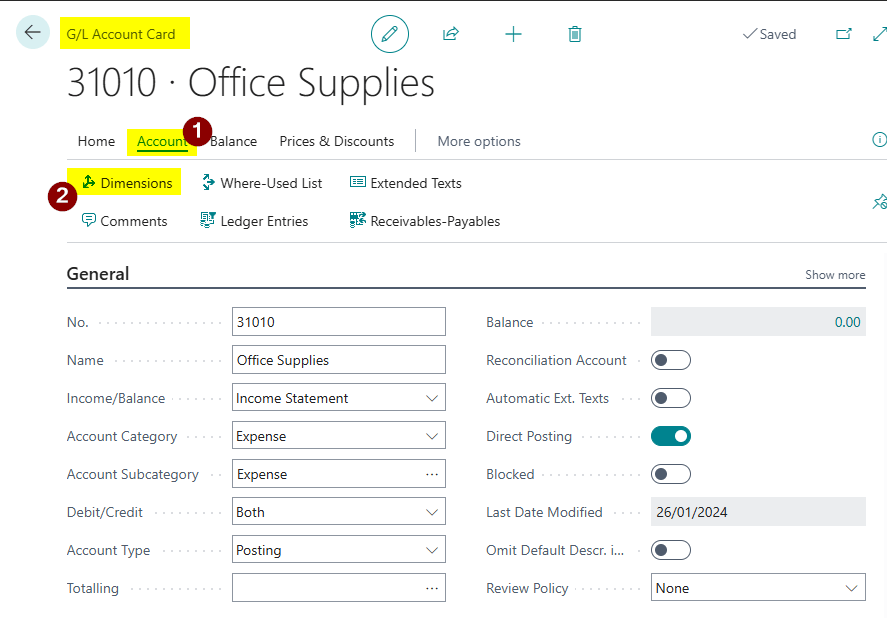
To do this open your General Ledger Account card and click “Account > Dimensions”.
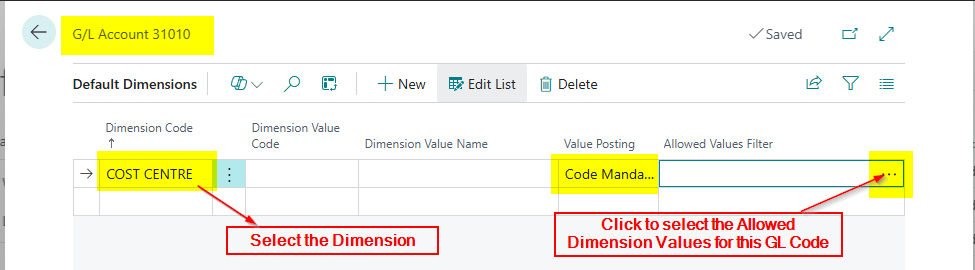
Next choose the relevant Dimension, in this case “Cost Centre”, and click to select the “Allowed Values Filter”.
This only works if you select “Code Mandatory” for the posting which is usually ok for Dynamics GP migrations
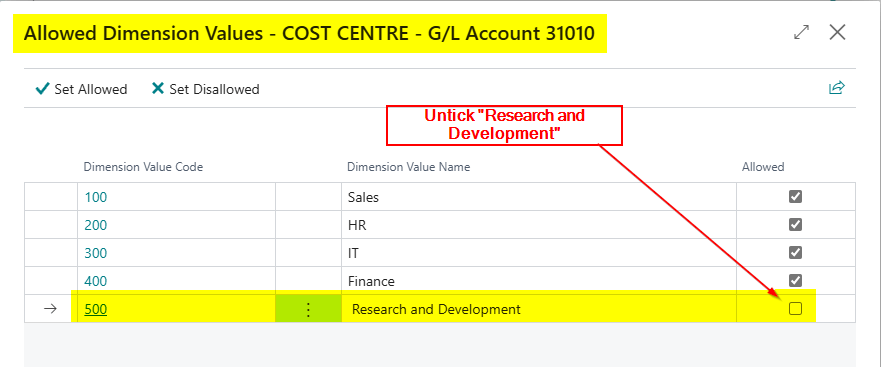
Now I can untick the Cost Centres I don’t want to be used with this General Ledger code.
Conclusion
In this post I’ve shown how by leveraging the “Allowed Values Filter” in Business Central, you can maintain the same level of control over General Ledger and Dimension combinations as in Dynamics GP, ensuring only valid Cost Centres are used with specific General Ledger codes 😊.
Thanks for reading!
 thedynamicsexplorer.com