Introduction
Just like Business Central, Dynamics GP allows you to design your externally facing document layouts, such as Sales Invoices / Customer Statements / Remittance Advice, using Microsoft Word.
When migrating to Business Central, you might have lots of different layouts in Dynamics GP that you need to recreate in Business Central, which can potentially take lots of time and effort.
In this post, using a Sales Invoice as an example, I’ll show how you can quickly and efficiently migrate the structure of the layouts to Business Central, rather than recreating them from scratch.
Step 1: Remove Content Controls from your Dynamics GP Layout
The first step involves removing the existing content controls from your Dynamics GP Sales Invoice layout.
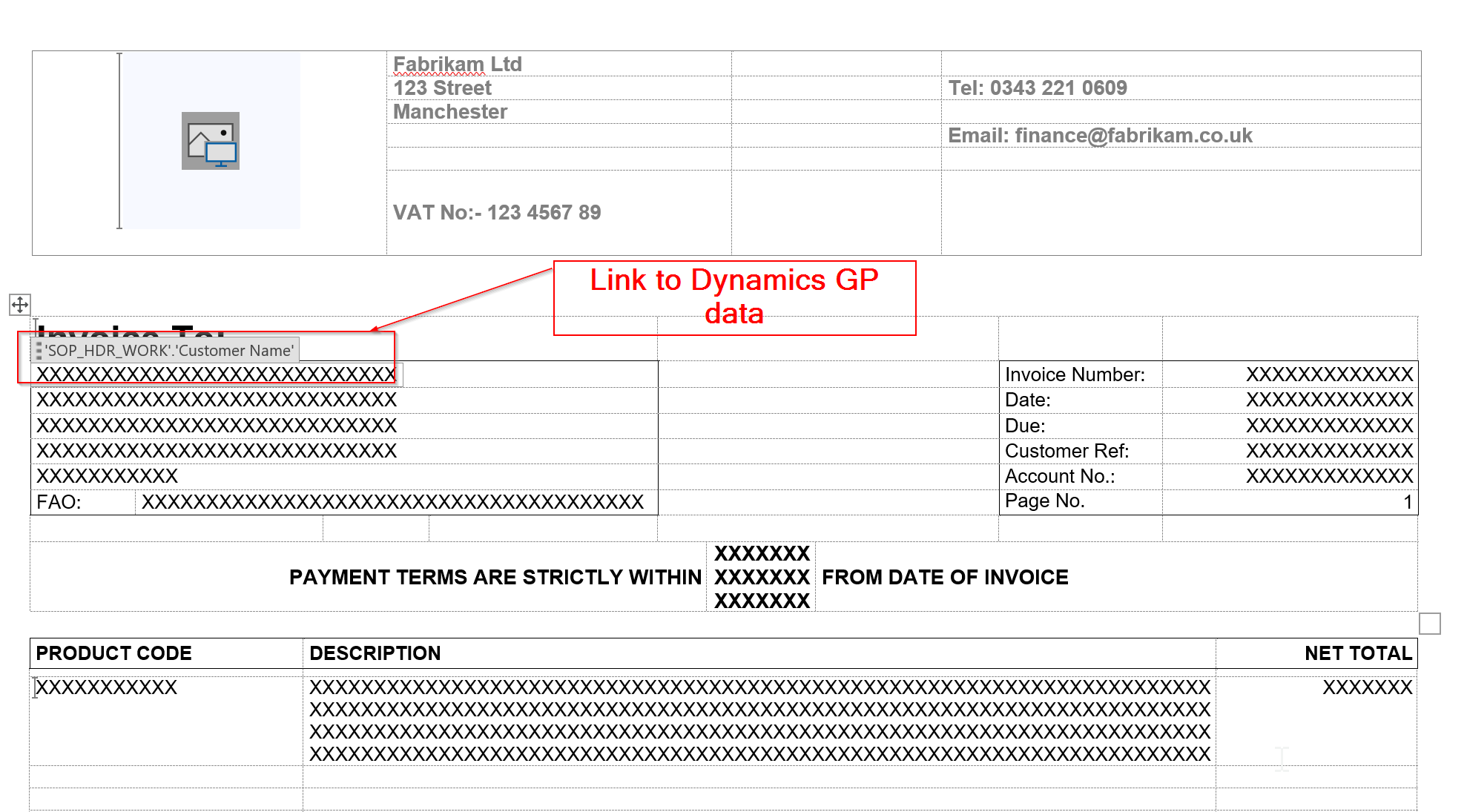
To do this extract your Word Layout from Dynamics GP, open it in Word, and you’ll see it has references to the old Dynamics GP fields as per below:
We need to remove these references, so press CTRL+A to select all, and then right click and choose “Remove Content Control”
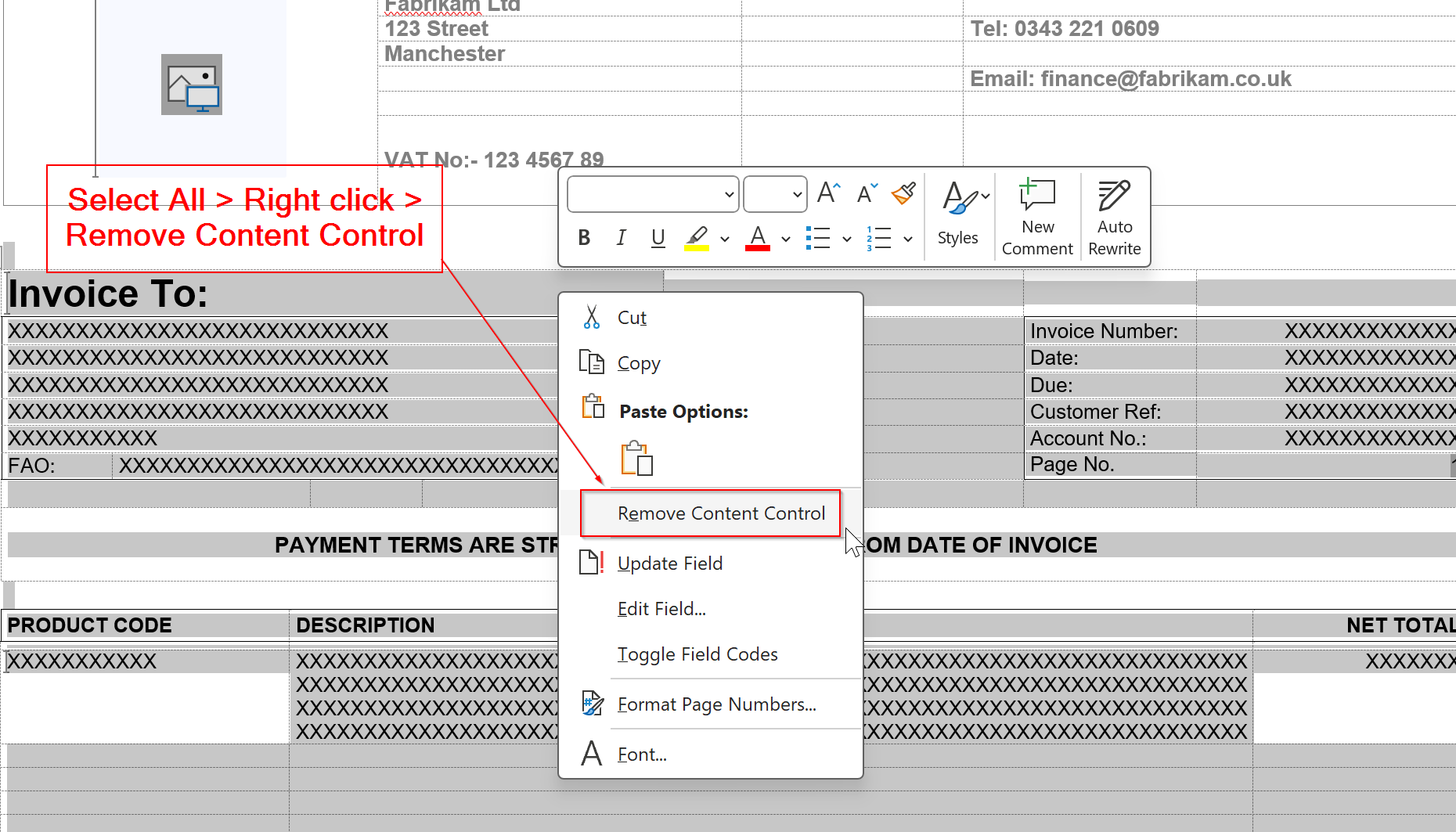
This will remove all the content controls from the Word Document.
If the layout has headers or footers, ensure you remove content controls from any of those fields as well.
Step 2 – Import the Word Layout into Business Central
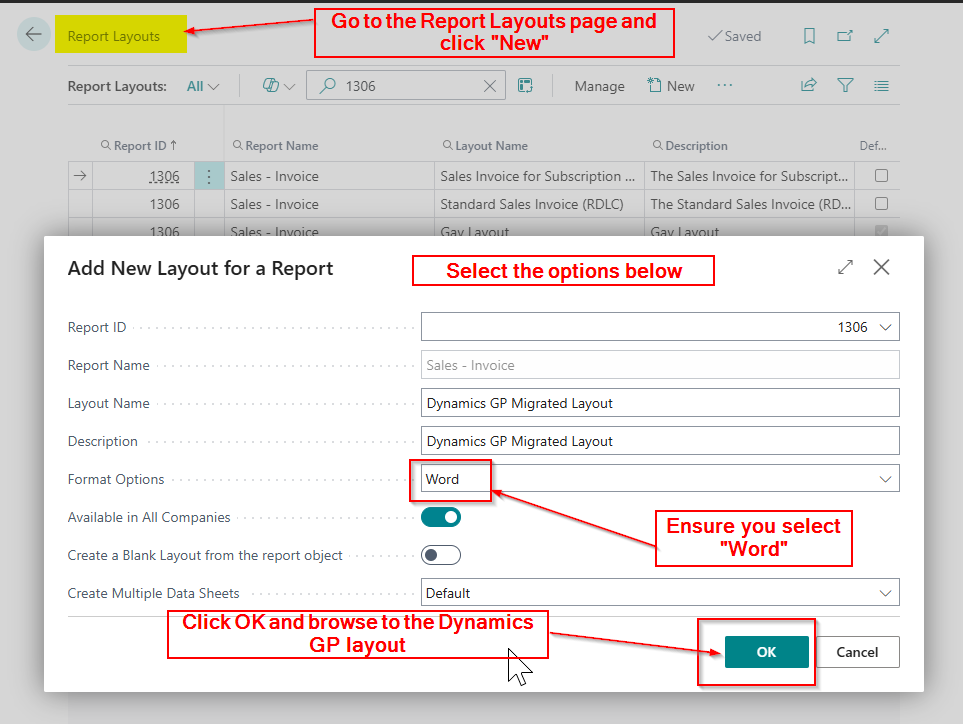
In Business Central, go to the “Report Layouts” page, and click “New” and enter the details as per below. Then click OK, browse to your Dynamics GP layout, which now has no content controls, and import it into Business Central.
Step 3 – Update and Export Layout
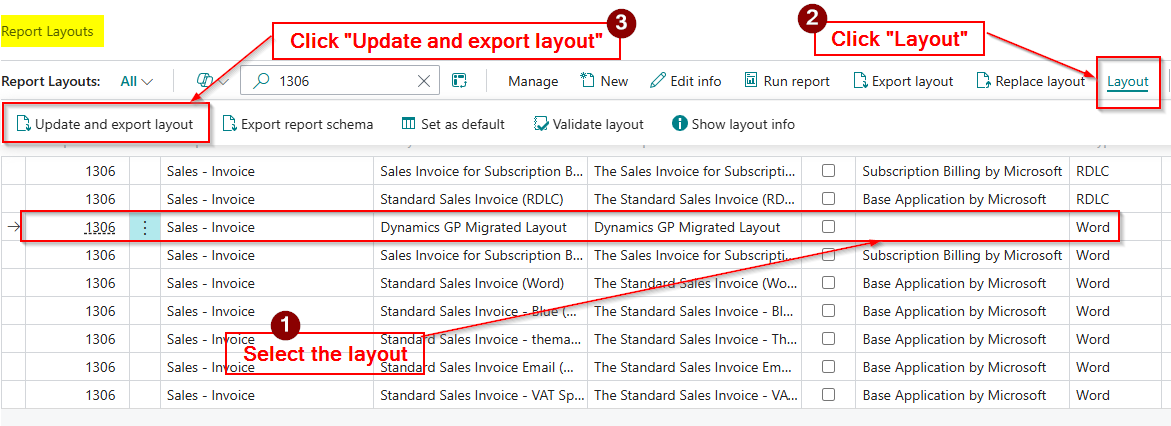
Now the report layout has been uploaded into Business Central, it will show in the “Report Layouts” page.
The next step is to select the layout and click “Update and Export Layout” which will download the layout and add the Business Central data set.
Step 4 – Open the Layout in Word and make the Changes
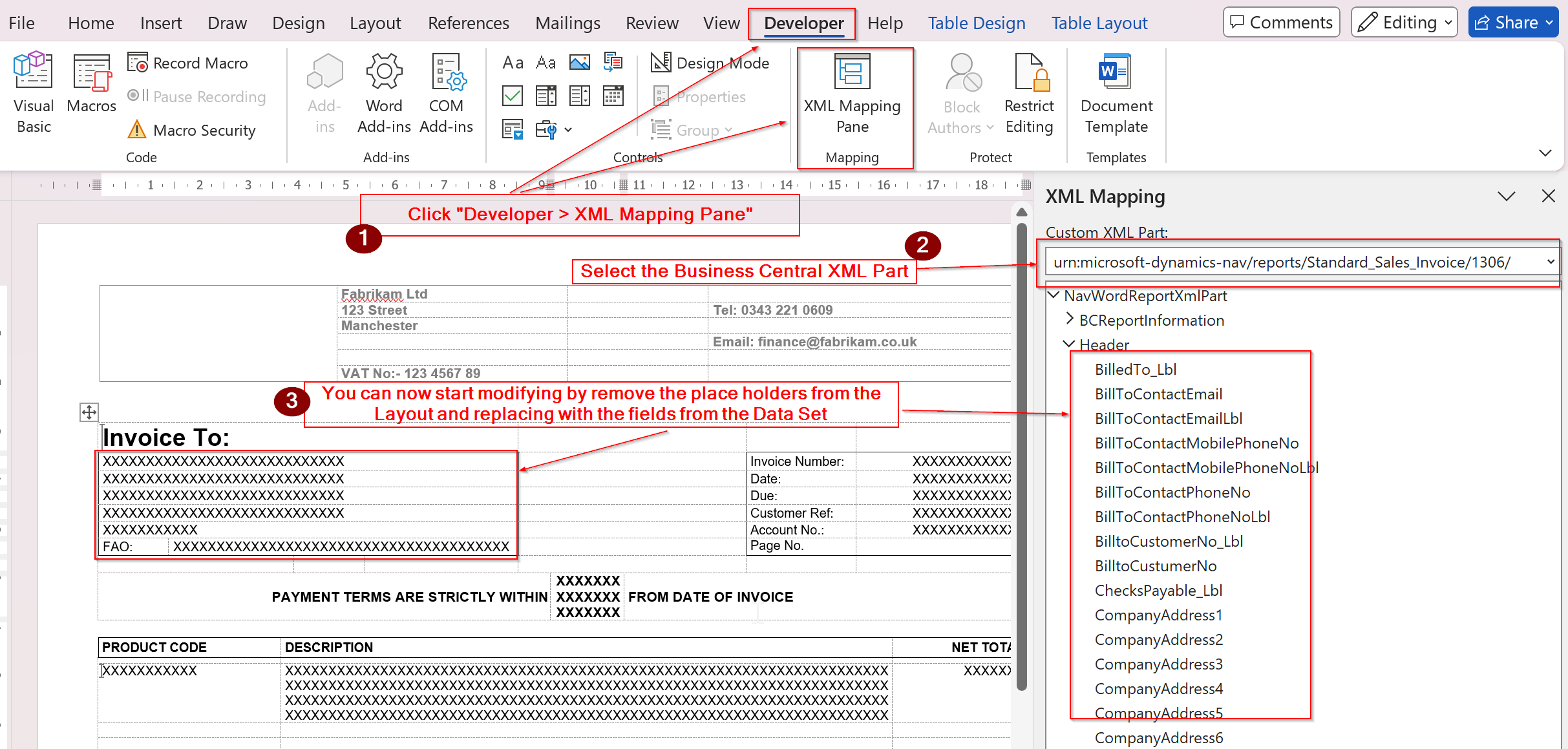
The final step is to open the layout in Word, select the Business Central data set via XML part, and start adding the Business Central fields onto the layout.
The great thing now is, you can methodically remove the text from the layout, and replace it with the relevant fields from the Business Central XML data set. This ensures you keep the original design, saving lots of time compared to recreating it from scratch.
Tip: I recommend keeping a copy of the original Dynamics GP template with its content controls intact, so you can easily reference the Dynamics GP data fields.
Conclusion
This blog outlines a straightforward process for rapidly converting your Dynamics GP layouts to Business Central in just a few simple steps.
Incidentally, this approach can be applied to any Word document you wish to adapt with a Business Central data set, though I’ve found it particularly valuable for Dynamics GP migrations.
Thanks for reading!
 thedynamicsexplorer.com