Introduction
I’m often asked what the “Balance” and “Total Balance” fields represent on the General Journal page (or any journal page). Since its something I go through regularly I thought I’d take the opportunity to make it into a blog post 😊 . (I also love revisiting some of the basics of journal functionality)
Therefore in this post we’ll walk through how the “Balance” and “Total Balance” fields are calculated and why I often refer to them as the “unbalanced” amounts.
Its also nice as it gives us the opportunity to highlight some of the basic functionality in the journal like how you can “Balance” a line using the “Bal. Account No”.
General Journal Example
To demonstrate how the balance and total balance fields are calculating, I’ve created a four line journal in the General Journal page. Crucially on the third line I’ll enter a “Balancing” general ledger account in the “Bal. Account No” field. (more on why later)
The journal I’ve entered is below with the balance and total balance highlighted:
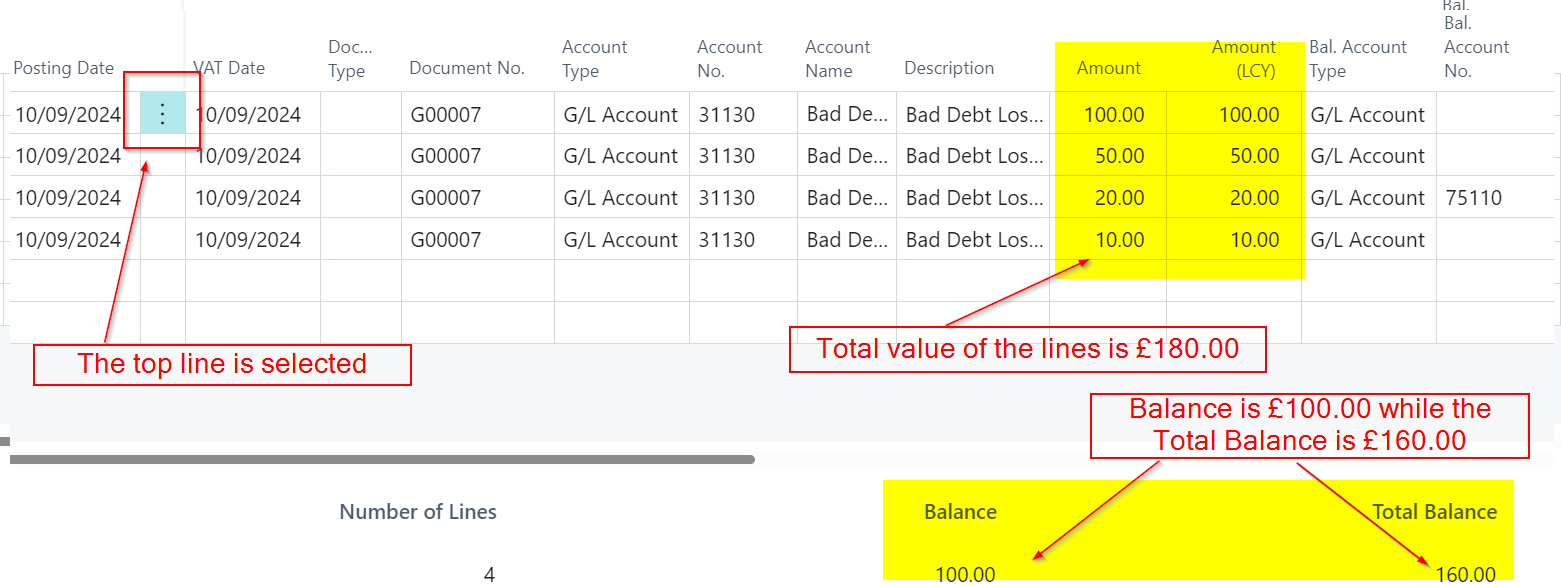
At this point, I have a four-line journal with a total amount of the lines is £180.00. The “Balance” field currently shows £100.00, while the “Total Balance” shows £160.00. As a result, all three values differ from one another.
Now let’s break this down and first look at how the “Balance” field is being calculated.
The Balance Field (or is it the unbalanced field?)
The “Balance” field represents the running total of the journal lines based on the line you have selected in the journal. For example, in the screenshot above, I’ve selected the top line, so the “Balance” field shows £100.00, as this is the value of the first line. If I were to click on the second line, the “Balance” would change to £150.00 as per below.
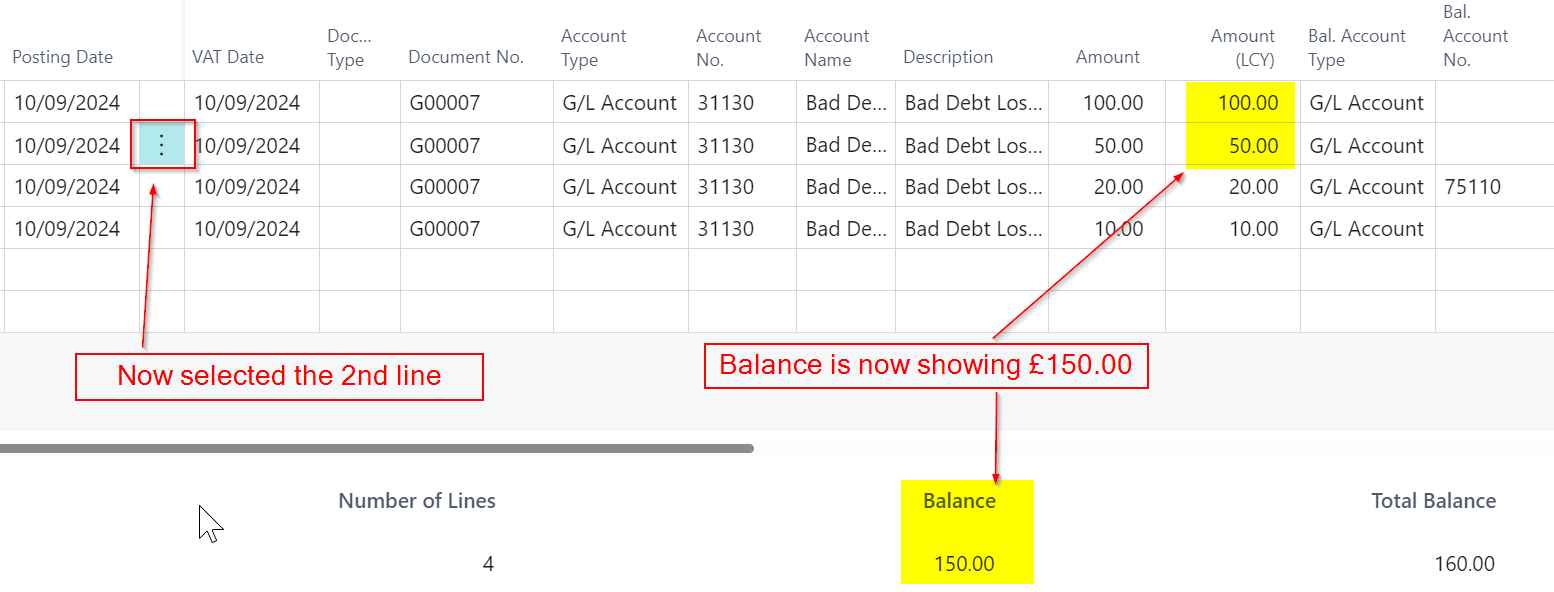
However this isn’t where the story ends with the “Balance” total😉.
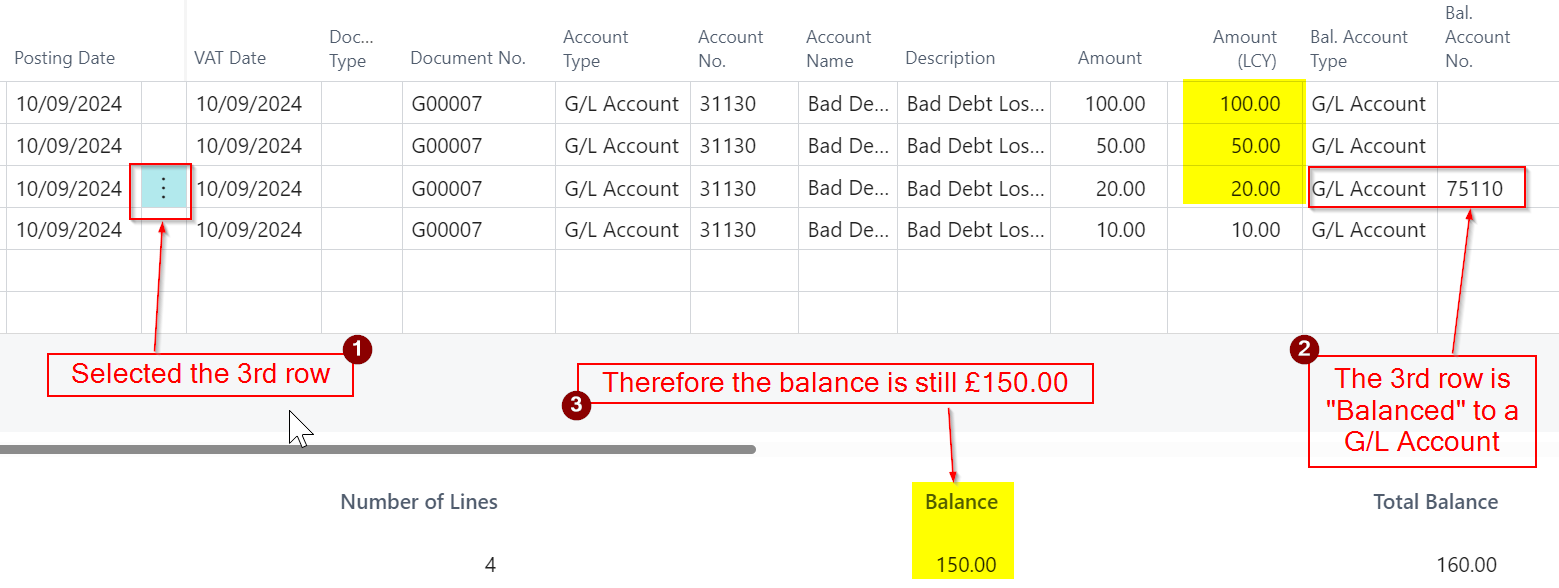
If I click on the 3rd line the “Balance” will remain at £150.00, but why is this? Why hasn’t the balance field changed to £170.00? If you look closely its because the 3rd line has been balanced with a G/L Account. Therefore the “Balance” of the journal on the 3rd line remains at £150.00.
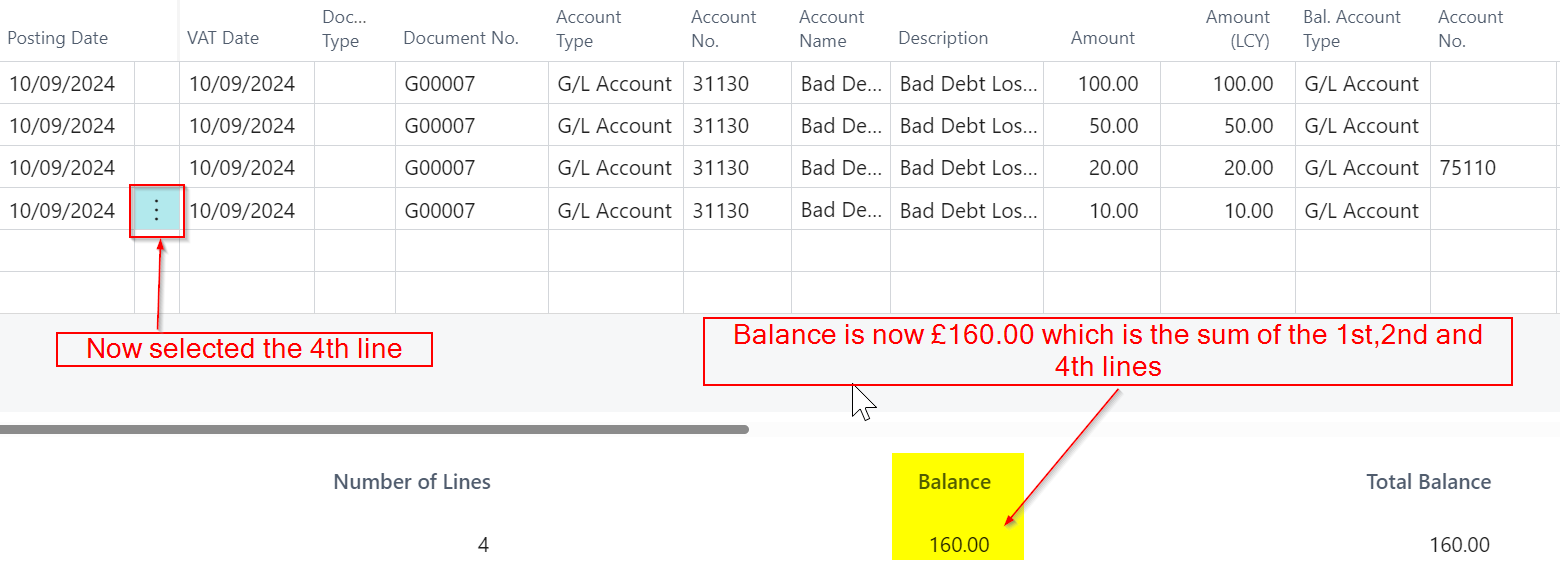
Finally if I click on the 4th line of the journal the balance will change to £160.00 as this is the sum of 1st, 2nd and 4th lines of the journal. (its the sum of the unbalanced lines of the journal)
Total Balance
The “Total Balance” field disregards which line you’ve selected in the journal and shows the “Total Balance” of the unbalanced lines. In this case, it’s £160.00.
To wrap this up, if I add a fifth line that “balances” the lines that are unbalanced, the “Total Balance” changes to £0.00 (and would show £0.00 regardless of where you click in the journal).
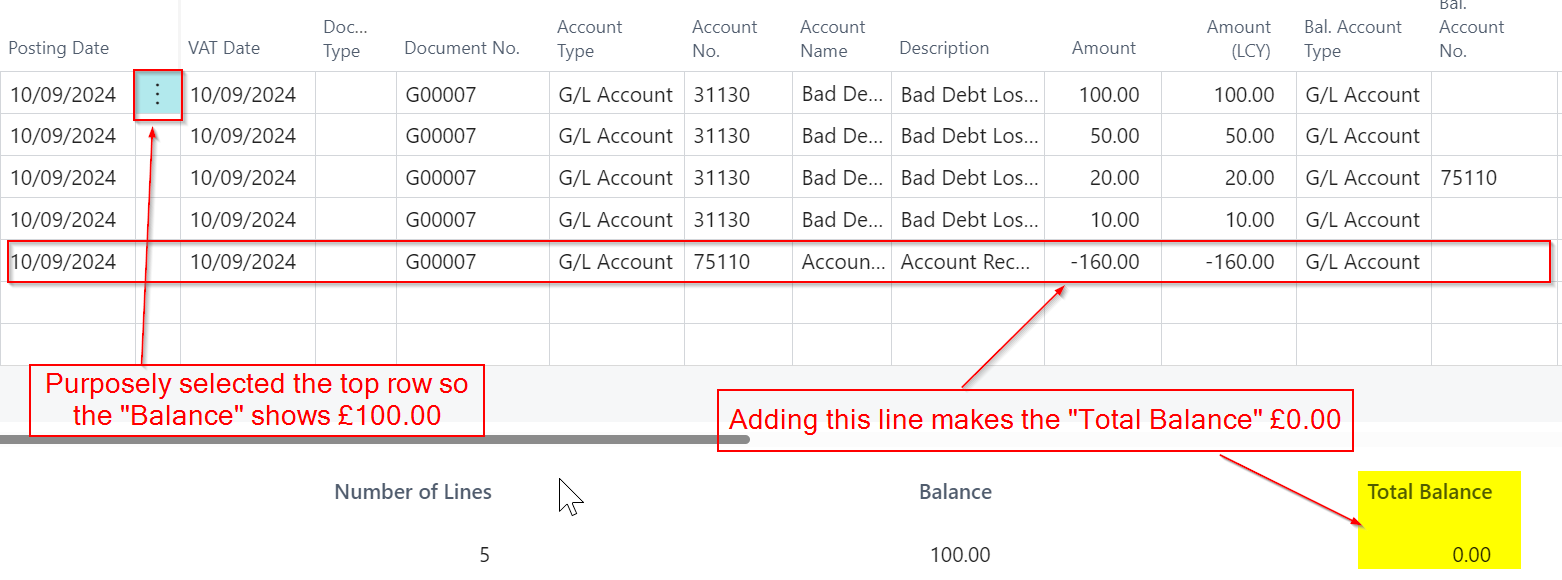
Its also important to note you can only post the batch when the “Total Balance” is zero.
Conclusion
The “Balance” field provides a running total based on your selected line, while the “Total Balance” reflects the sum of all unbalanced lines in the journal. Recognising how these fields work not only helps in verifying your entries, but also ensures your journal is correctly balanced before posting.
Thanks for reading!
 thedynamicsexplorer.com