Introduction
Recently I needed to find out when an environment had been created in Business Central. In this post I’ll explain how this can be achieved via the “Operations” page in the Business Central Admin Centre.
The Admin Centre
The Business Central Admin Centre allows you to perform various administrative tasks on your Business Central environments, including creating new ones.
You can access this several ways, with the most common methods being via the “Settings” option in Business Central as per below
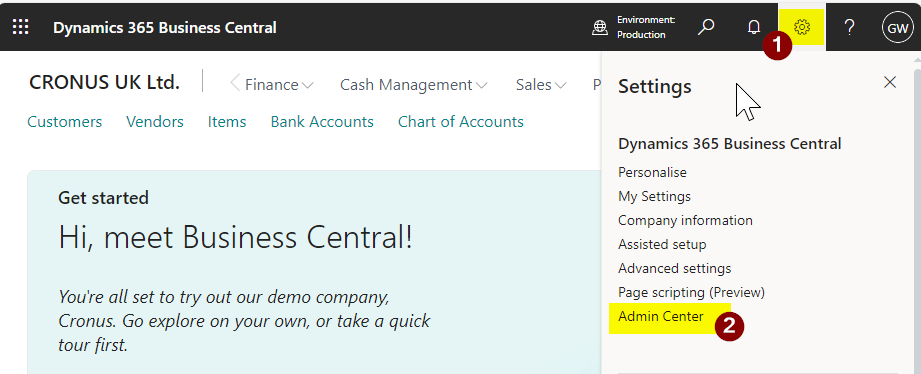
Alternatively you can add the word “Admin” to the end of the Business Central URL as shown below:
https://businesscentral.dynamics.com/<tenantid>/admin
Please note in both cases you need special permissions to be able to access the Business Central Admin Centre. I explain more about this and the Admin Centre in general in this post and YouTube video
Once in the Admin Centre you can find out when an environment was created by clicking “Operations” (1), then selecting the environment you are interested in (2), next selecting “All” (3), and finally clicking “Filter” (4) as per below
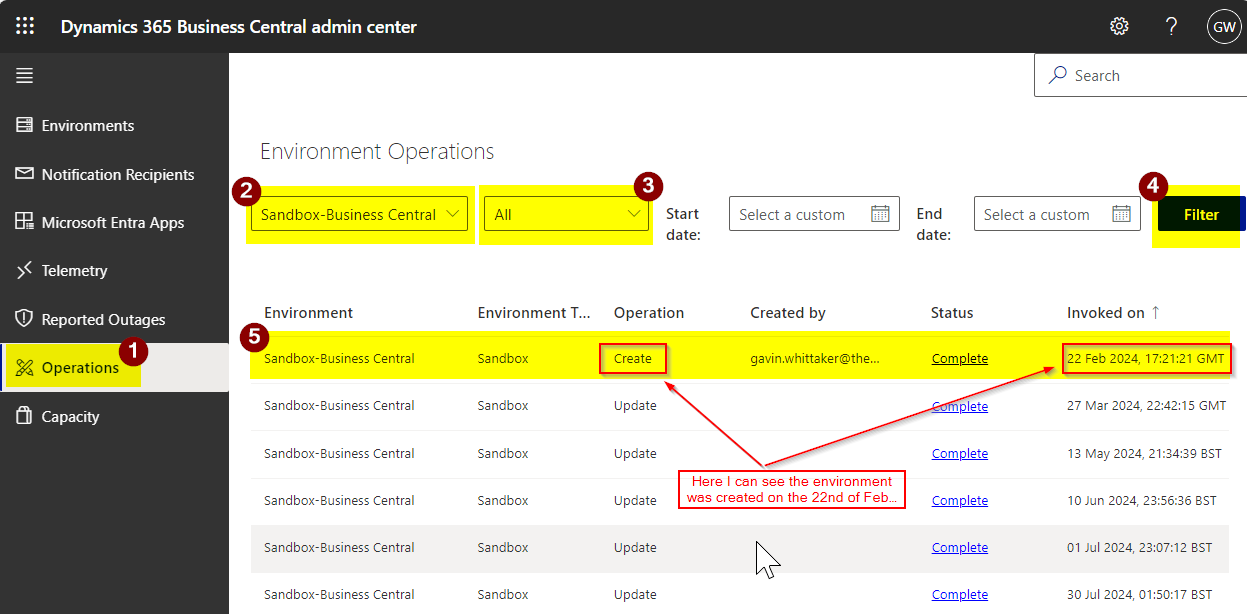
Here I can now see that the environment was created on the 22nd of February 2024 and also which user created the environment.
You can also see other useful information like when the environment has been updated, when an app was installed, or an environment copied etc
Conclusion
This is a quick method for checking when an environment was created. Its also a great example of Microsoft responding to community input through the Microsoft Ideas site, where this idea was originally proposed. You can find the idea and Microsoft’s response here.
Thanks for reading!
 thedynamicsexplorer.com