Introduction
I recently encountered an issue where the fixed assets depreciation had been ran incorrectly and therefore it all had to be cancelled.
In this post, I’ll show a couple of ways you can cancel all depreciation in a given time frame or filter. These include using the “Cancel Entries” on the “FA Ledger Entries” page, and my preferred option, the “Cancel FA Entries” function on the Deprecation Book.
Scenario
In this scenario, I’ve posted depreciation for the month of August, impacting more than 300 assets. However, I’ve identified an error and now wish to cancel all depreciation for August.
There are a couple of approaches I could use to address this issue.
Option 1:- Multi select in the FA Ledger Entries Page
One way I could resolve this is to go the “FA Ledger Entries” page and filter for the entries I wish to cancel and click “Cancel Entries”.
For example, below I’ve filtered on the “AUGUSTDEPREC” document number and then selected all the entries and clicked “Cancel Entries”.
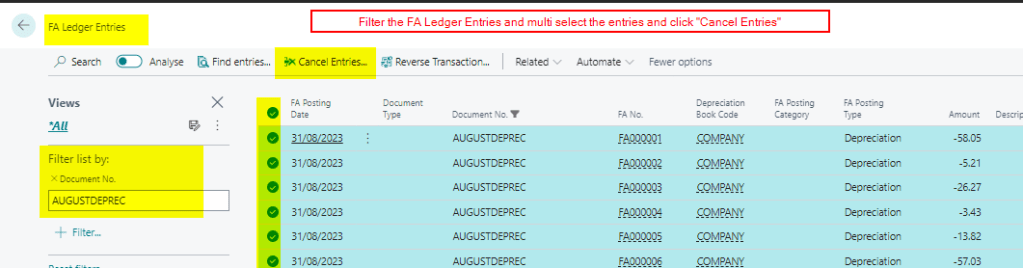
Although this would create me a Fixed Assets G/L Journal to cancel the entries, it wouldn’t automatically populate the balancing account. I’d then have to open the “Fixed Asset G/L Journal” page and highlight all the rows and click “Insert FA Bal Account”
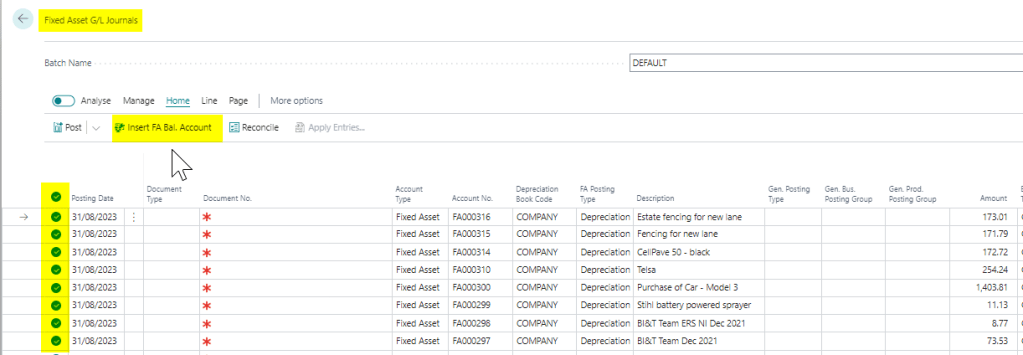
I could then post the journal which would cancel the entries.
Option 2 – Use “Cancel FA Ledger Entries” on the Depreciation Book
I find that another, more efficient way of doing this, would be to use the “Cancel FA Ledger Entries” function on the Depreciation Book.
To do this search “Depreciation Book”, select the relevant Depreciation Book, and then click to edit it. Next, select the option “Actions > Functions > Cancel FA Ledger Entries”
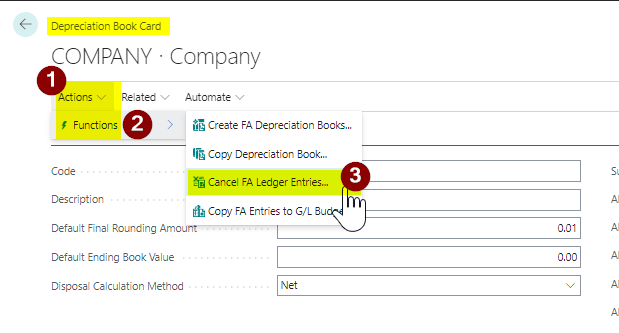
This will open a dialog box with various options for cancelling different types of Fixed Assets transactions including Depreciation.
I’ll therefore choose the options below and click OK.
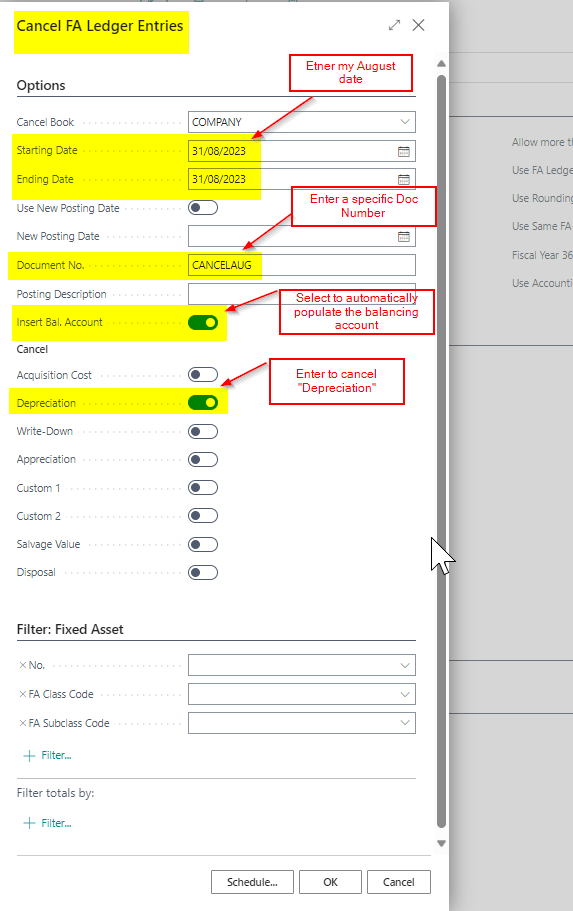
Using this method, I’m sure to cancel all depreciation entries within the specified date range. Additionally, it allows me to include the balancing account and specify a document date, all conveniently on a single page.
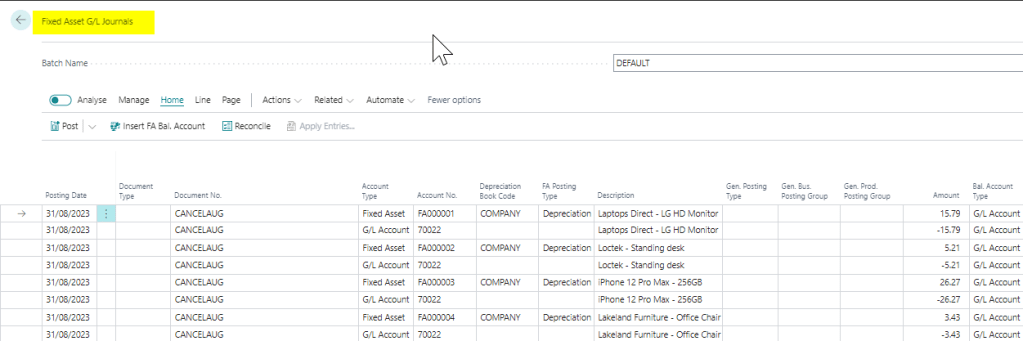
This will then create the relevant Fixed Asset G/L Journal I can post to cancel the entries
Final Note
When you choose to “Cancel” entries although all entries are reversed, including GL entries, they don’t appear in the “FA Ledger Entries” page. (this includes the FA Ledger Entry you cancelled). They can be viewed via the “FA Error Ledger Entries” page. This is by design as the entries have been cancelled.

Conclusion
There are various methods available for cancelling Fixed Assets entries. However, when I need to cancel multiple entries simultaneously, such as monthly depreciation, I prefer using the “Cancel FA Ledger Entries” page. When cancelling individual entries, I find the “Cancel FA Entries” option on the “FA Ledger Entries” page to be more convenient.
Thanks for reading!
 thedynamicsexplorer.com