Introduction
There might be situations when you only want to post part of a Journal batch, rather than the whole batch. For example, if you have several monthly adjustment journals in one batch, you might only want to post a selection of the entries, rather than the whole batch. In this post I’ll walk through how this can be achieved using filters.
Scenario
Let’s say you have a month end journal batch that contains several monthly adjustments you are working on. Now you just want to post a selection of the entries in the of the journal batch, and continue working on the rest.
As there is only a “Post” option on the menu bar, its not obvious how you can achieve this, however this can be done using filtering on the journal lines.
Filtering in a Journal
Below is a journal batch that contains a depreciation entry, an accrual and a journal for bad debt that hasn’t yet been finalised.

In this scenario, I only want to post the depreciation entry, and continue working on the other journals in the batch. To do this I can click the “Filter” option and filter the lines to my depreciation journal as per below.
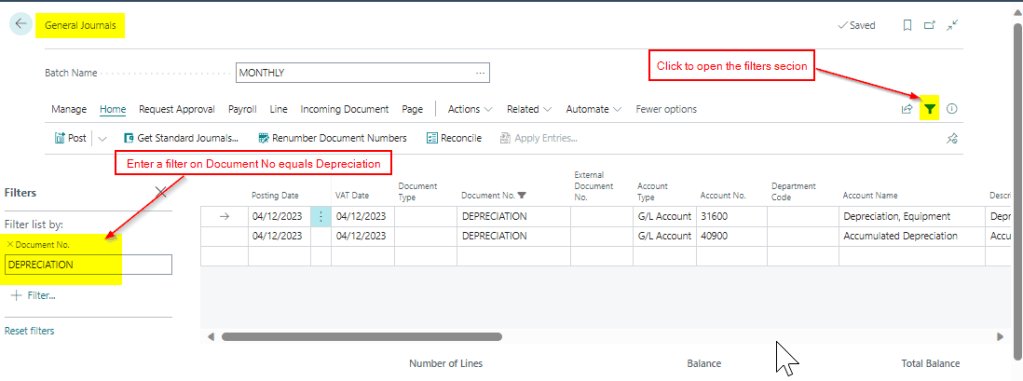
Now, when I click “Post”, Business Central honours the filter and only posts what is currently filtered. As you can see below only two GL entries have been created. (and in fact the journal wouldn’t have posted without the filter as it didn’t fully balance)

Conclusion
Its common to advise users to create a journal batch per task in Business Central. For example, a journal batch for Adjustments, Accruals etc however you can use one batch and use filters to post just what you need.
Thanks for reading!
 thedynamicsexplorer.com